

Every second your website takes to load is costing you visitors. A one-second delay cuts conversion rates by 7%, and bounce rates climb from 9% to 38% when load times stretch from two to five seconds. If you run a local business, a salon, or an e-commerce store, that is real revenue walking out the door before your page even finishes loading. Knowing how to improve website speed is no longer optional. This guide walks you through auditing your site, fixing the biggest bottlenecks, and keeping performance sharp for the long term.
Table of Contents
- Key takeaways
- How to improve website speed with a baseline audit
- Core optimization techniques that move the needle
- Server and backend performance
- Front-end bloat and third-party scripts
- Verifying improvements and maintaining speed
- My take on speed optimization priorities
- Ready to speed up your site for real?
- FAQ
Key takeaways
| Point | Details |
|---|---|
| Speed directly affects revenue | A one-second improvement in load time can increase conversions by 17% and reduce bounce rates significantly. |
| Audit before you fix | Use tools like Google PageSpeed Insights and GTmetrix to identify exactly what is slowing your site down before making changes. |
| Images are the biggest culprit | Switching to AVIF or WebP format and compressing images can cut file sizes by 80% or more without visible quality loss. |
| TTFB is the first thing to fix | Server response time drives 80% of speed issues. Resolve hosting and caching problems before optimizing code. |
| Maintenance keeps gains alive | Set performance budgets, monitor regressions, and run regular audits to prevent speed from degrading over time. |
How to improve website speed with a baseline audit
Before you touch a single file, you need to know what is actually slow. Guessing wastes time. A proper speed audit gives you a prioritized list of fixes and a baseline to measure progress against.
Start with these tools:
- Google PageSpeed Insights — Free, Google-owned, and scores your page against Core Web Vitals directly.
- GTmetrix — Gives a waterfall view of every request so you can see exactly which resource is delaying the page.
- WebPageTest — Lets you test from multiple locations and connection speeds, which matters if your visitors are spread across different regions.
- Lighthouse — Built into Chrome DevTools, useful for testing changes locally before pushing them live.
Run each tool on your homepage and your top three landing pages. Different pages have different bottlenecks, and you want a complete picture.
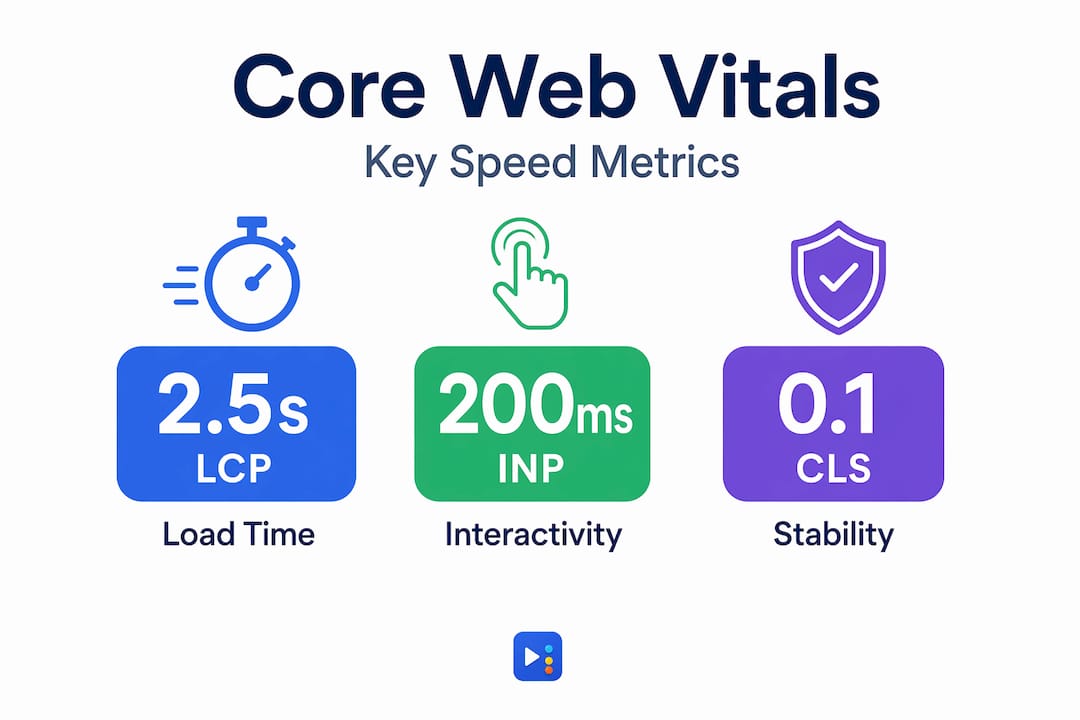
The metrics that matter most are laid out by Google's Core Web Vitals framework. Good performance targets are defined as LCP at or under 2.5 seconds, INP at or under 200 milliseconds, and CLS at or under 0.1. Here is how to read each one:
| Metric | What it measures | Target |
|---|---|---|
| LCP (Largest Contentful Paint) | How fast the main visible content loads | ≤ 2.5s |
| INP (Interaction to Next Paint) | How quickly the page responds to clicks and taps | ≤ 200ms |
| CLS (Cumulative Layout Shift) | How much the layout jumps around as it loads | ≤ 0.1 |
| TTFB (Time to First Byte) | How fast the server sends the first byte of data | ≤ 800ms |
Once you have your scores, sort your issues by impact. Fix the things dragging down LCP and TTFB first. Small JavaScript tweaks rank lower on the priority list.
Pro Tip: Save your audit results as a PDF or screenshot before making any changes. You will want a clear before-and-after comparison to confirm your fixes actually worked.
Core optimization techniques that move the needle
Image files are almost always the heaviest assets on any web page. Switching to AVIF format cuts image sizes by 30 to 50% compared to WebP, and compressing images properly reduces file weight by 80% or more without any visible quality loss. That is the single fastest win available to most website owners. Use tools like Squoosh, ShortPixel, or your CMS's built-in optimization to handle bulk compression.
Lazy loading is equally important. It tells the browser to skip loading images that are below the fold until the user actually scrolls to them. On a long salon service page or a portfolio with dozens of photos, lazy loading alone can cut initial page weight by half.
Beyond images, reducing HTTP requests speeds things up significantly. Every CSS file, JavaScript file, font, and image is a separate request. More requests mean more round trips to the server. Here are the most direct ways to cut them down:
- Combine CSS and JavaScript files where possible, but watch for render-blocking paths that can slow the critical rendering path instead of helping it.
- Defer non-critical JavaScript so the browser renders visible content first.
- Remove plugins, widgets, or scripts you are no longer actively using.
- Use a Content Delivery Network (CDN) to serve static files from servers closer to your visitors.
Caching is one of the most underrated website performance optimization moves available. Browser caching tells returning visitors' browsers to store a copy of your CSS, images, and scripts locally so they do not re-download everything on every visit. Server-side caching stores pre-built HTML pages so the server does not have to rebuild them from scratch on each request. For WordPress sites, plugins like WP Rocket or W3 Total Cache handle both layers.
Code minification is the last core technique. Minifying HTML, CSS, and JavaScript strips out whitespace, comments, and redundant characters. A typical CSS file can shrink by 20 to 30% through minification alone. Most caching plugins handle this automatically, so there is no reason to skip it.
Pro Tip: Setting explicit width and height attributes on every image prevents layout shifts during loading, which directly improves your CLS score. This takes five minutes and requires zero technical knowledge.
Server and backend performance
If your TTFB is above 800 milliseconds, no amount of front-end optimization will fix your speed problem. Server response time accounts for 80% of website speed issues. You have to address the backend first.

Shared hosting is the most common culprit. When your site shares server resources with hundreds of other websites, your TTFB spikes during peak traffic hours. Moving to a managed WordPress host or a VPS with dedicated resources often cuts TTFB in half without any other changes.
Here is a backend optimization checklist worth working through:
- Update your PHP version. PHP 8.2 and above processes WordPress requests significantly faster than older versions. Many sites still run on PHP 7.4 or earlier.
- Clean your database. Post revisions, expired transients, and orphaned metadata bloat the database over time. Using WP-CLI commands to clear expired transients and limit post revisions improves responsiveness during high-traffic periods.
- Enable object caching. Tools like Redis or Memcached store the results of expensive database queries in memory so the server does not repeat work it has already done.
- Enable Brotli or GZIP compression. Brotli compression reduces text-based assets like HTML, CSS, and JavaScript by 70% or more. Brotli outperforms GZIP on modern browsers, though GZIP remains a solid fallback.
Regularly cleaning unused plugins and database entries keeps the backend lean and prevents server overhead from creeping up over time. Schedule a monthly cleanup as a standard part of your site maintenance.
Pro Tip: Ask your host directly whether they support Brotli compression and object caching. Many managed hosts include both, but they are often turned off by default. One support ticket can unlock a significant speed gain.
Front-end bloat and third-party scripts
Third-party scripts are one of the most underestimated sources of slowness on modern websites. Chat widgets, Facebook Pixel, Google Tag Manager with dozens of tags, review platforms, heat mapping tools: each one adds weight and execution time. Deferring non-essential scripts significantly reduces interaction latency and improves INP scores across the board.
Audit every third-party tag on your site. For each one, ask: is this actively being used, and does its value outweigh the performance cost? If you have not checked your Tag Manager container in six months, there are probably tags firing that you have long forgotten about.
Front-end code bloat shows up in a few specific ways:
- Excessive DOM size, sometimes called "div soup," where pages have thousands of nested HTML elements.
- Unused CSS rules loaded from oversized theme stylesheets.
- Multiple font files loading for weights and styles you never actually display on the page.
Cleaning unnecessary DOM elements and CSS directly reduces LCP times, especially on image-heavy pages. For font loading, use "font-display: swap` in your CSS so the browser shows fallback text immediately instead of showing nothing while the custom font downloads.
Balancing rich visuals with performance is a real challenge for visually driven businesses like beauty salons, med spas, and restaurants. The answer is not to strip your site bare. It is to inline critical CSS so the visible portion of your page renders instantly, then load the rest asynchronously. You get full visual impact without paying the speed penalty up front. Check out image optimization strategies for more detail on doing this without sacrificing design quality.
Pro Tip: Run your site through Google Tag Manager's preview mode and count how many tags fire on the homepage. If you count more than ten and cannot name what each one does, you almost certainly have dead weight slowing your site down.
Verifying improvements and maintaining speed
Optimization is not a one-time event. Sites slow down again as you add content, install plugins, and accumulate database clutter. Here is a practical process for sustaining the gains you make:
- Retest after every round of changes. Run PageSpeed Insights and GTmetrix the same day you make optimizations to confirm the improvement and catch any regressions you may have introduced.
- Set a performance budget. Define acceptable thresholds for LCP, page weight, and total requests. If a new feature pushes you past the budget, you address it before publishing.
- Monitor mobile separately. Google uses mobile-first indexing to rank your pages, meaning your mobile score matters more than your desktop score for SEO. Test on a throttled 4G connection, not just your office Wi-Fi.
- Schedule quarterly audits. Review plugin and theme updates, check for new third-party tags, and re-run a full Lighthouse report every three months.
- Consider professional help when gains plateau. If you have addressed the obvious issues and your scores are still poor, the bottleneck is likely at the server or architecture level and worth professional diagnosis.
Pro Tip: Set up Lighthouse CI in your deployment pipeline if you manage the site technically. It flags performance regressions automatically before they ever reach your live site.
My take on speed optimization priorities
I have worked on website performance for a lot of small businesses, and I see the same pattern repeatedly. Site owners spend hours tweaking JavaScript defer settings and shaving milliseconds off script load times, while their TTFB is sitting at 1.8 seconds because they are on shared hosting that costs six dollars a month. Performance experts consistently advise fixing server response times and caching before touching code-level optimizations. That advice is right, and most people ignore it.
The other thing I have seen consistently is that visually rich sites, the kind nail salons and med spas rely on for first impressions, do not have to be slow. They just require more intentional architecture. Inline your critical CSS, lazy load your gallery images, and defer your scripts. You keep the aesthetic and you keep the speed score. It is not a trade-off if you build it correctly.
Third-party scripts deserve more fear than most site owners give them. I have audited sites where a single abandoned chat widget was responsible for 1.5 seconds of interaction delay. Removing it cost nothing and fixed a problem that months of code tweaking would never have solved.
Focus your energy in order: fix TTFB first, images second, and front-end code third. That sequence gives you the most measurable improvement for the least amount of effort.
— Tran
Ready to speed up your site for real?
At Yourlocalseo, we work with small businesses across Pflugerville, Austin, Round Rock, and the greater Central Texas area to get sites performing at their best. Speed is part of every project we take on, because a slow site undermines everything else you do in SEO and paid advertising.

Whether you need a full technical audit, a site rebuild with performance baked in from the start, or ongoing local SEO support to climb the rankings, we have the experience to deliver results you can actually measure. Our local SEO services are built around real outcomes, and our website design work prioritizes Core Web Vitals from day one. Reach out to Yourlocalseo and let us show you exactly what is holding your site back.
FAQ
How fast should a website load?
Your site should load its main content within 2.5 seconds, which is Google's target for a good LCP score. Pages loading in under two seconds see significantly lower bounce rates than pages taking five seconds or more.
What is the fastest way to boost website loading time?
Compressing and converting images to AVIF or WebP format typically delivers the largest immediate improvement. Combined with enabling server-side caching and a CDN, these changes can cut load times by several seconds.
Why does TTFB matter so much for site speed?
TTFB measures how quickly your server sends its first response, and slow TTFB signals a hosting or caching problem that delays everything else on the page. Fixing TTFB above 800 milliseconds has more impact than any front-end optimization you can apply.
Does website speed affect Google rankings?
Yes. Google uses Core Web Vitals, including LCP, INP, and CLS, as ranking signals. A site that consistently fails these thresholds will rank below competitors whose sites pass them, all else being equal.
How do I maintain good website speed long-term?
Run PageSpeed Insights audits quarterly, monitor for new third-party scripts added through tag managers, keep PHP and plugins updated, and clean your database regularly to prevent performance from degrading over time.