

If customers in Austin, Round Rock, or Pflugerville are searching for what you sell but landing on a competitor instead, an unverified Google Business Profile could be the reason. Verification gives you ownership of your profile so you can edit your business name, hours, and contact info while unlocking the tools you need to engage with real customers. Without it, your listing sits incomplete, unmanaged, and far less likely to rank in the local map pack. This guide walks you through every step to fix that, fast.
Table of Contents
- What you need before starting Google Business Profile verification
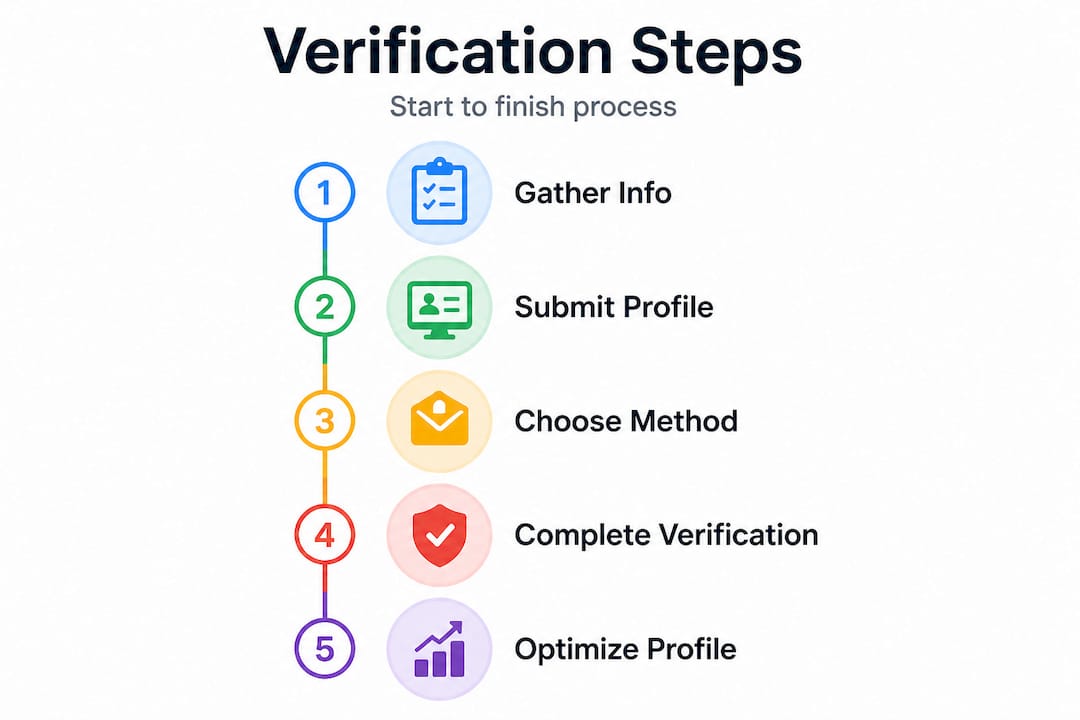
- Step-by-step: How to verify your Google Business Profile
- Troubleshooting and common issues during verification
- What to do after successful verification
- Our take: What actually works for Google Business verification in Texas
- Get expert help with Google Business Profile and local SEO
- Frequently asked questions
Key Takeaways
| Point | Details |
|---|---|
| Have correct details ready | Gather accurate business info and documents to speed up Google’s review process. |
| Choose the right verification method | Use the verification method best suited to your Texas business type for smooth approval. |
| Troubleshoot quickly | Know common issues and how to resolve them if you hit a snag during verification. |
| Unlock profile features | Completing verification lets you edit your business info and engage with local customers. |
What you need before starting Google Business Profile verification
Now that you know why verification matters, let's get the basics ready before you begin.
Jumping into the verification flow unprepared is one of the most common reasons Texas small business owners stall out. Google's system is methodical. It cross-references the details you submit against public records, your website, and existing listing data. Any inconsistency slows things down or triggers a rejection. Spending ten minutes gathering the right information before you start will save you days of waiting.
Here's what to have on hand:
- Your exact legal business name (match it to your signage, website, and any existing citations)
- Your business address or service area (confirm the address matches your physical location or the service area reflects where you actually work)
- A working local phone number (a local area code builds more trust than a toll-free number in most cases)
- Your business category (choose the most specific primary category available)
- Your official business domain email address (example: owner@yourshopname.com)
- A government-issued ID or business license, depending on the method Google assigns
- Access to the phone number or email address listed so you can receive a verification code
Pro Tip: Always use your official business domain email when creating or claiming your Google Business Profile. Google flags free email addresses like Gmail or Yahoo when they don't match your listed website, and that mismatch can trigger extra review steps or delay approval.
The verification methods available to you include video, phone, text, and email, and the option Google presents depends on your business type, publicly available information, your region, and your hours of operation. Not every method is available to every business, which is why understanding your business type before you start matters.
Here's a quick overview of what each business type typically needs:
| Business type | Address required | Service area needed | Most common verification method |
|---|---|---|---|
| Storefront (retail, salon, restaurant) | Yes | No | Video or phone |
| Service-area business (plumber, landscaper) | Hidden or omitted | Yes | Video or email |
| Multi-location business | Yes (each location) | Varies | Individual or bulk (if eligible) |
| Home-based business | Hidden | Yes | Video or email |
Accuracy is everything here. If the business name you enter differs even slightly from what's on your website or other directory listings, Google's review system may flag the inconsistency. Consistent information across your profile and citations is one of the most important factors in optimizing your Google Business Profile for long-term ranking performance.
Step-by-step: How to verify your Google Business Profile
Once you have your details ready, it's time to work through the verification process step by step.
The exact flow depends on whether you're a storefront business, a service-area business, or managing multiple locations. We'll cover each scenario clearly so you know exactly what to expect.
For storefront businesses (retail shops, salons, restaurants, mechanics)
Google's setup flow for storefront businesses, including restaurants, nail salons, and auto shops, follows a structured sequence. Google's sign-up flow includes selecting whether customers can visit your location, entering your address and confirming the map pin placement, choosing your primary business category, adding your phone number and website, and then selecting a verification method from the options presented.
- Go to google.com/business and sign in with your Google account.
- Enter your business name. If a listing already exists, claim it rather than creating a duplicate.
- Select your business category carefully. This affects how Google classifies you in search results.
- Confirm that customers can visit your location and enter your full address.
- Verify your map pin is accurate. Drag it to the correct spot if needed.
- Add your phone number and website URL.
- Select the verification method Google offers. Complete the steps for that method immediately.
For service-area businesses (home services, mobile businesses, contractors)
Service-area businesses follow a slightly different path. You'll add your service areas instead of a public-facing address. Google may prompt you to hide your address so your profile shows service-area visibility rather than a physical location, which is appropriate for businesses like plumbers or mobile groomers.
- Follow steps 1 through 3 above.
- When asked if customers can visit your location, indicate that you serve customers at their locations instead.
- Add the service areas you cover. Be specific. Adding Round Rock, Cedar Park, and Georgetown separately is more useful than just "Austin area."
- Hide your address if you work from home or don't have a public-facing location.
- Complete the verification method Google offers.
Pro Tip: Use the verification method Google recommends in your specific setup flow. The system is designed to match the best available option to your business type and situation. Trying to force a different method often leads to delays or rejection.
Here's a comparison of the most common verification methods:
| Verification method | Speed | Best for | Potential drawbacks |
|---|---|---|---|
| Video | 1 to 5 business days | Most business types | Requires recording a walkthrough |
| Phone call | Immediate | Storefront businesses | Must answer during business hours |
| Text message | Immediate | Storefront businesses | Must have access to listed number |
| Immediate to 24 hours | Home-based or service-area | Must use a business domain email |
Boosting Google Maps visibility starts the moment your profile is verified and complete, so pushing through verification quickly gives you a real competitive edge in local search.
Troubleshooting and common issues during verification
Even with preparation and care, hiccups can happen. Here's what to expect and fix when things go sideways.
Verification issues are frustrating, especially when you've done everything right. The good news is that most problems have straightforward solutions once you know what to look for.
"Verification can take up to 5 business days." Google also notes that if the "Get verified" button reappears in your dashboard, you can try verifying again or select a different verification method. Source: Google Business Profile Help
That five-day window catches a lot of business owners off guard. They expect instant results, see no change after 24 hours, and start making changes to their profile that can actually reset the review process. Patience matters here.
Common issues and how to fix them:
- Mismatched business information: If your business name, address, or phone number on your profile doesn't match what appears on your website or other directories, Google's review system may flag it. Fix the inconsistency before retrying.
- Non-business domain email: Using a Gmail or Yahoo address instead of your official domain email is a common approval blocker. Create a domain-based email address if you don't have one.
- Incorrect map pin placement: A pin placed in the wrong location can delay or complicate verification, especially for storefront businesses. Drag it to the correct spot before submitting.
- No response to verification code: If you miss a phone call or text, the code expires. You'll need to request a new one.
- Video verification issues: Make sure your video clearly shows your business signage, entrance, and the surrounding area. Blurry or incomplete footage typically results in rejection.
- Duplicate listings: If Google detects an existing listing for your business, it may ask you to claim the existing profile rather than create a new one. Always search for your business first.
Google also provides specific guidance on delays and disapprovals, including notes about email addresses not matching your official domain and special rules around bulk verification eligibility for multi-location businesses.
Pro Tip: For service-area businesses or multi-location operators, don't assume you qualify for bulk verification. Google restricts bulk verification eligibility, so plan to verify each location individually unless you've confirmed otherwise. Attempting bulk verification when you're not eligible adds weeks to the process.
**Improving your Google ranking](https://blog.yourlocalseo.us/blog/proven-ways-improve-google-ranking-small-businesses) starts with a clean, verified profile, so resolving verification issues quickly keeps your local SEO momentum moving.
What to do after successful verification
Once Google confirms you're verified, don't stop. Here's how to make your profile work for your business right away.
Verification is the starting line, not the finish line. A verified but incomplete profile still ranks below competitors who have taken time to fully build out their listings. The steps you take in the first few days after verification directly affect how quickly you start appearing in local map pack results.
As Google confirms, you need verification to edit business info and interact with customers. That full access is now yours. Use it.
Step 1: Complete your core business information
- Confirm your business name, address, and phone number are exactly correct.
- Set your business hours, including special holiday hours if applicable.
- Add or update your service area if you're a service-area business.
- Select all relevant secondary categories in addition to your primary category.
- Add your website URL and confirm it resolves correctly.
Step 2: Add photos and visual content
Photos are one of the highest-impact items you can add immediately. Listings with photos receive significantly more direction requests and website clicks than those without. Upload:
- Your exterior storefront or signage
- Interior shots showing your space or work environment
- Team photos (builds trust and humanizes your brand)
- Before-and-after photos if you're in a service industry
- Product photos if you sell physical goods
Step 3: Start engaging with customers
- Respond to any existing reviews (positive or negative) with a professional, personalized reply
- Set up a Q&A section with answers to common questions your customers ask
- Create your first Google post to announce a promotion, service, or business update
- Add your services or menu items to the relevant sections of your profile
Optimizing your profile fully after verification is what separates businesses that rank in the top three map pack positions from those buried on page two. And managing local listings consistently across platforms amplifies the trust signals that Google uses to rank you higher over time.
Our take: What actually works for Google Business verification in Texas
Having covered the tactical how-to, here's what our experience tells us about getting verified fast and pain-free in Texas.
We work with small businesses across Pflugerville, Austin, Round Rock, Georgetown, and Cedar Park every single day. And one pattern shows up repeatedly: business owners who struggle with verification almost always have a consistency problem, not a process problem. Their business name on Google doesn't match their Facebook page. Their address has "Suite" written differently across listings. Their website lists a different phone number than their GBP. These small gaps are invisible to a human but are exactly what Google's automated review system is trained to catch.
Our honest advice: before you touch your verification flow, do a quick audit of your business information across every platform you're on. Google, Yelp, your website, Facebook, Apple Maps. Make them all match exactly. That one step eliminates the majority of verification delays we see.
The video verification method is worth embracing, even though it feels awkward at first. It's become Google's preferred method for many business types because it creates a clear, reviewable record of the business location. A clean 60-second walkthrough showing your signage, your entrance, and your immediate surroundings is usually enough. Skipping it or submitting a poor-quality video is the single fastest way to restart the clock.
For service-area businesses in Central Texas, especially home services and mobile operators, the address-hiding step is critical. Businesses that display a home address on their profile when they should be showing a service area create trust issues with both Google and potential customers. Set your service areas accurately and hide the address if you're not operating from a commercial location.
Google indicates that bulk verification may be restricted for multi-location businesses or service-area businesses without regular customer-facing hours. If you're expanding to a second or third location in the Austin metro, plan to verify each one individually. Building that time into your launch timeline avoids a nasty surprise.
Following the essential local SEO steps after verification is where the real ranking momentum builds. Verification alone won't put you in front of customers. It just opens the door. What you do with that access is what determines your local search position.
Get expert help with Google Business Profile and local SEO
Completing verification on your own is absolutely possible, and this guide gives you everything you need to do it. But if you want to skip the trial and error, or if you've already run into a wall with a stubborn verification issue, we're here to help.

At ourLocalSEO, we handle Google Business Profile setup, verification support, and full profile optimization for small businesses across Central Texas. We know what Google is looking for because we've done this for nail salons, med spas, restaurants, home service companies, and more across Pflugerville, Round Rock, Georgetown, and Austin. Whether you need a profile built from scratch or you want to make sure your verified listing is fully optimized to rank, our team is ready. Explore our advanced local SEO tricks to see what a fully optimized presence looks like, and reach out when you're ready to move forward.
Frequently asked questions
How long does Google Business Profile verification take?
Verification can take up to 5 business days, though some submissions are reviewed faster depending on the method used and the completeness of your business information.
What happens if the "Get verified" button appears again?
If the button reappears, try verifying again or select a different method as prompted, since the previous attempt may not have been completed or approved.
Are all verification options available for every Texas business?
No. Verification methods depend on business type, publicly available information, region, and business hours, so your available options may differ from another business owner's experience.
Do I need to verify each branch if I have a multi-location business?
Most Texas small businesses will need to verify each location individually because bulk verification eligibility is restricted and subject to Google's quality guidelines, especially for service-area and non-staffed locations.
Why does Google require verification to edit business info?
Verification confirms you own the business, which allows you to keep your profile accurate, edit key details like hours and contact info, and interact directly with customers through reviews and posts.